 WP Accessibility Knowledge Base
Patterns to avoid: Disappearing toast notifications
There are different ways to dynamically provide a user with information. Methods might include using a banner, a snackbar, or a toast. What are the differences, and what is important to ensure all users get the same information?
Banners, snackbars, and toasts
What is the difference?
- A banner is a message of one or more paragraphs that appears on top of the screen and stays there until dismissed by the user. It can contain actions such as Close, Undo, or Retry, as well as links.
- A snackbar is a short message that appears at the bottom of the screen or close to the user’s focus and can contain one or more actions. A snackbar preferably stays on screen until dismissed by the user.
- A toast is a short message that appears on screen and disappears after a few seconds.
Accessibility concerns of toasts
In order to receive the message in a toast, the user must notice it appear on the screen and have enough time to read it.
Because a toast notification typically appears in a part of the page unrelated to where the user is interacting and disappears only for a few seconds, the user may not have enough time to notice it.
Chances are that the user is busy with another task on the page and misses the message altogether. Also, not everyone reads fast; the reader may see the message too late or doesn’t have enough time to read what it says.
The disappearing message cannot be read again; the information is lost after a few seconds.
Example: the ‘publish’ button in WordPress is in the upper right corner, but triggers a toast notification in the lower left corner. This distance increases the likelihood that users will miss the notification.
Delaying the disappearance of the message on hover or focus can help, but the user must know this is possible, and a keyboard user may not have enough time to tab to the toast before it disappears.
If a user is zoomed in the messages may fall outside the viewport or be overlapped by other elements.
Another concern is that screen reader users won’t receive the message at all if it isn’t announced using, for example, aria-live="polite" or role="status".
Adrian Roselli wrote an extensive article Defining ‘Toast’ Messages about its accessibility issues.
These are not only accessibility concerns but also usability issues.
How many days of my life have I wasted in wait to get a confirmation for an action only to see in the corner of my eye on my 27-inch screen that a toast message has just disappeared?
Please, for the love of kittens: Stop using toast messages. Thank you.
– Eric Eggert Mastodon
How to provide dynamic information
The best way to dynamically provide a user with information is to use a message component that stays on screen. Let the user close the status message manually or let it disappear when the user leaves the page or when it’s no longer valid.
A common pattern is to add messages to a region in a consistent place, for example, at the top of the screen, close to the previous user interaction, or, for form error messages, just above the form.
Test if the message stays visible when a user zooms in or enlarges the text by using reflow or text only.
Announce a dynamically generated message with, for example, aria-live="polite" or role="status" to inform the screen reader user too.
For WordPress core, you can use wp.a11y.speak() and for the Block editor speak() to announce the message. The topic Feedback on dynamic changes provides you with more information on how to do this in WordPress.
Then you are ensured all users will notice the information and have time enough to read and even re-read it.
Summarized
Make sure that:
- The message always appears in a consistent and easy-to-discover position on the screen.
- The message stays on screen until the user dismisses it, or after a page reload.
- The message isn’t overlapped by other elements or falls outside the viewport when the user zooms in or enlarges the text.
- The message is announced by a screen reader.
Banners, snackbars, and toasts in WordPress code
WordPress core provides a few options for displaying dynamic messages; when you use these, test for the accessibility issues mentioned above first.
To print admin screen notices use: do_action( ‘admin_notices’ ).
For example:
add_action( 'admin_notices', 'wpa11y_do_admin_notice' );
/**
 * Output an admin notice with `role="alert"`,
 * so it will be announced by assistive technology.
 */
function wpa11y_do_admin_notice() {
    $message = __( 'Your message will be output.', 'wp-a11y' );
    wp_admin_notice(
        $message,
        array(
            'type'       => 'error',
            'attributes' => array( 'role', 'alert' ),
        )
    );
}
For Gutenberg:
- Notice, to communicate prominent messages to the user.
- Snackbar, to communicate low-priority, non-interruptive messages to the user.
Note: set
explicitDismisstotrue.
Examples in WordPress of dynamic messages
Update a theme
Updating themes in the WordPress Admin is done well; the new message is announced by a screen reader and is easy to spot.
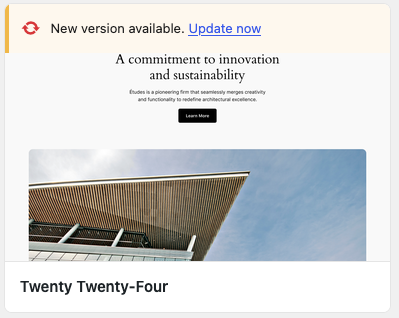
After pressing the link “Update now”, the message is replaced by “Updated!”.
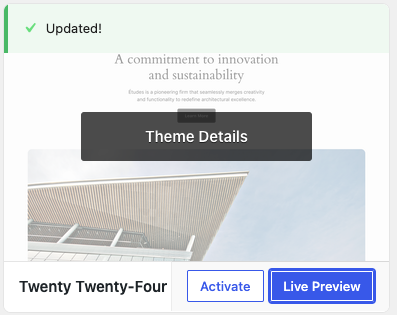
The screen reader feedback is added to the a11y-speak-polite region in the HTML at the bottom of the page with aria-live=”polite”:
<div id="a11y-speak-polite" class="a11y-speak-region" style="position:absolute;margin:-1px;padding:0;height:1px;width:1px;overflow:hidden;clip-path:inset(50%);border:0;word-wrap:normal !important;" aria-live="polite" aria-relevant="additions text" aria-atomic="true">
    Update completed successfully.
</div>
Update a post
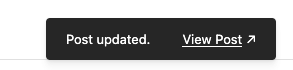
After updating a post, the snackbar “Post updated” with a “View Post” link appears at the bottom of the page for a few seconds and then disappears. The text is announced by a screen reader, but this pattern needs improvement. The message should not disappear.
Resources
WCAG Success Criteria related to banners, snackbars, and toasts
- 1.4.4 Resize Text (Level AA).
- 1.4.10 Reflow (Level AA).
- 2.2.1 Timing Adjustable (Level A).
- 2.2.3 No Timing (Level AAA).
- 4.1.3 Status Messages (Level AA).
Related pages in this documentation
- Feedback on dynamic changes in Standards and best practice, Frontend code.
- Provide feedback to screen reader users on form errors in Standards and best practice, Web forms.
- Screen reader testing in Test for accessibility.
Other resources
- Defining ‘Toast’ Messages by Adrian Roselli.
- Accessible notifications and messages: Toasts on Primer, the design system for GitHub.
- A toast to an accessible toast by Scott O’Hara.
- Toast Notification Accessibility by Design System Problems.
- Toasts, Snackbars, and WCAG Compliance by Arpita Banerjee.
- Snackbar vs toast: decoding the subtle differences in design systems by Hizkia St.
- Toast vs Snackbar vs Banner: Which One Should You Use? on Supercharge design.